Social Media Image Resizer
One upload, every platform. Pin the part of the photo that matters and download correctly-cropped copies for all 7 networks. Sized to the pixel, zipped in one click, never uploaded anywhere.
- No signup
- 27 platform sizes
- Focal-point crop
- One-click ZIP
- Nothing uploaded
Write it once, post it everywhere. Social Magnum schedules and publishes to all 20+ networks in one click.
Drop an image here
or click to choose one. JPG, PNG, WebP, GIF or AVIF
Your file is never uploaded. It is read straight into this page.
One photo in
No account neededEvery size out. Pin kept in frame
Story 9:16
Post 4:5
Square 1:1
Thumb 16:9
How it works
Resize an image for every platform in five simple steps
The reason a post looks wrong is almost never the photograph. It is the crop. This fixes the crop, everywhere, at once.
- 1
Drop in one image
JPG, PNG, WebP, GIF or AVIF. Read straight into the page by your browser. There is no upload, so there is no upload wait.
- 2
Pin the focal point
Click the face, the product, the logo. Whatever must survive. Every crop re-centres on that exact spot, and the preview dims everything about to be cut.
- 3
Pick your sizes
27 presets across 7 networks. Posts, stories, reels, covers, thumbnails and banners. Tick one, a few, or all of them.
- 4
Crop, blur fill or fit
Crop fills every frame edge-to-edge. Blur fill keeps the whole picture over a blurred copy of itself, so a landscape photo can become a story intact. Fit pads with a colour you choose.
- 5
Download the ZIP
Every size rendered from your original at exact pixel dimensions, named by platform, delivered in one file.
The sizes are solved. The schedule is next.
This tool ends the crop-by-crop fiddling; Social Magnum ends the tab-by-tab posting. Write the post once and it goes to all 20+ networks. Image attached, caption tailored, timed per platform, from one composer. Free to start.
hero-shot.jpg · 4000×2667
Read locally1080×1920
1080×1350
1280×720
Rendered on your machine · keeps working offline
Sizes
Mode
Format
Quality
92%The toolkit
Eight things it gets right
Small tool, strong opinions. Each one is there because the default way of resizing gets something wrong.
- 1
Focal-point cropping
The part of the image you pin is centred in every crop, and the preview dims what gets cut. No more faces halved by a story frame or products pushed out of a banner.
- 2
27 sizes, 7 networks
Instagram, Facebook, X, LinkedIn, Pinterest, TikTok and YouTube. Every current spec, maintained so you never have to look one up.
- 3
One ZIP for everything
Select any number of sizes and download once. Each file rendered independently from the original, never from another resize.
- 4
Crop, Blur fill and Fit
Fill the frame and trim the excess, keep the whole picture over a blurred copy of itself, or pad with your colour. Switch per batch depending on what the image is.
- 5
Three export formats
JPG for photographs, PNG for transparency and crisp flat colour, WebP for the smallest files.
- 6
A quality dial that matters
Default 92%. The sweet spot where files shrink dramatically and the difference stays invisible, even after the platform re-compresses.
- 7
Pixel-exact output
A 1080×1350 preset produces a file that is exactly 1080×1350. No rounding, no letterboxing surprises when the network displays it.
- 8
Local and offline
The canvas work happens on your machine. Load the page, lose the Wi-Fi, keep resizing. Nothing here ever needed a server.
Built for everyone who posts the same image twice
Same three clicks whatever the job. Pin, tick, download.
Social managers
One brand shot becomes every network's spec without opening a design tool or a spreadsheet of dimensions.
Creators
Thumbnail, banner and story from the same frame. With the focal point pinned on your face in all of them.
Small shops
Product photos that stay centred on the product, whatever shape the platform demands.
Bloggers & marketers
Link cards and pins that stop shaving the headline off the top of the image.
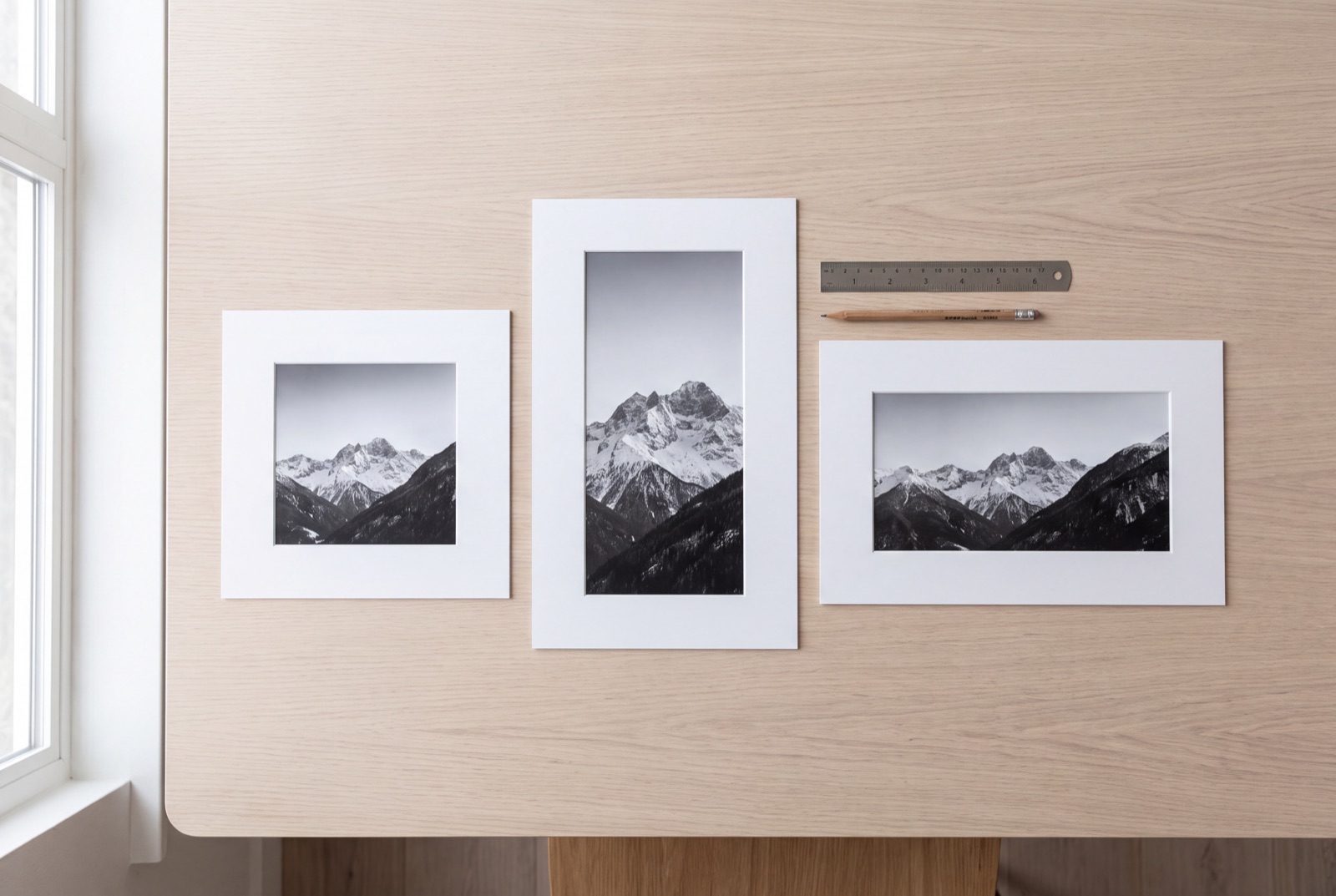
Sharp everywhere, compressed once
Each size is rendered from your original, never from another export, so nothing is compressed twice. Downscaling stays effectively lossless; and when a target is larger than your source, the tool is honest about it: it will produce the file, but it cannot invent detail that was never captured. Start from the largest original you have.
FAQ about resizing images for social media
Are my images uploaded anywhere?
No. The file is read directly by your browser and drawn onto a canvas on your own machine. Nothing is sent to Social Magnum or any other server. Which is also why the tool keeps working if you go offline after the page loads.
What is the focal point for?
Cropping a wide photo to a 9:16 story throws away most of the width, and every other resizer decides which part to keep by centring. Click or drag anywhere on your image to pin the part that matters, a face, a product, a logo, and every selected size re-crops around it. The image above dims everything that is about to be cut, so you can see the result before you download it rather than after.
How do I resize one image for every platform at once?
Tick every size you need, or a whole network's worth, and download once. Each copy is rendered independently from your original at exactly the platform's pixel dimensions, then the lot arrives as a single ZIP with the files named by platform and size.
What size should an Instagram post be?
1080×1350 (4:5 portrait) takes the most vertical space in the feed and is the best default. Use 1080×1080 for a square and 1080×1920 for stories and reels.
What does Fit do that Crop doesn't?
Crop fills the whole frame and cuts whatever does not fit. What you want almost always, because a padded post looks like a mistake in a feed. Fit keeps the entire image and pads the edges with a colour you choose, which is the right call for logos, screenshots and anything where losing an edge would lose meaning.
How do I turn a landscape photo into a story without cutting it?
Use Blur fill. A 16:9 photo forced into a 9:16 story keeps only about a third of its width, which is why a straight crop so often slices the subject in half. Blur fill puts your whole image in the middle at full width and fills the space above and below with a soft, blurred copy of the picture itself. Nothing is cropped, and it reads as a deliberate design rather than a letterbox.
How do I know a size is about to ruin my image?
The tool tells you before you download. Any size that keeps less than about half the picture, or that has to enlarge your original, is labelled with exactly how much, and the big preview shows the crop. If a size is too destructive, switch that batch to Blur fill or Fit.
Will resizing make my image blurry?
Scaling down is lossless in practice. Scaling up is not. If your source is smaller than the target size the tool will still produce the file, but it cannot invent detail that was never captured, so it labels the size with how far it is being enlarged. Start from the largest original you have.
Which format should I choose?
JPG at 90–95% quality for photographs, PNG when you need a transparent background or crisp text and flat colour, WebP when you want the smallest file and only care about modern browsers. JPG cannot store transparency at all, so if your image has a transparent background choose the colour it should sit on, or export PNG instead.
What happens to quality when the networks re-compress?
Every platform re-compresses what you upload; you cannot stop that, but you can avoid compressing twice. Export at 90–95% rather than 100%, the file is far smaller and the difference is invisible, and always resize from your original, never from something you already exported.
Related reading
Social Media Image Sizes: Documented, or Just Widely Agreed?
Social media image sizes split into what the platforms publish and what is only convention. Every figure read at source, the difference marked.
ReadInstagram Story Size: 1080 × 1920, and What the Interface Covers
Instagram Story size is 1080x1920 at 9:16, not 16:9. What the interface covers, where the safe zone really is, and how to resize an image free.
ReadInstagram Post Size: 4:5, 3:4, and the Number Most Guides Get Wrong
Instagram post size runs to 1080x1440, taller than the 1080x1350 most guides quote. What the help page says, and which ratio you should use.
ReadFacebook Cover Photo Size: Desktop and Mobile Disagree
Facebook cover photo size is 851x315, not the 820x312 most guides quote. Desktop shows 16:9 and mobile 2.4:1, so one cover is cropped twice.
ReadYouTube Thumbnail Size: What Changed, and Whether Your Old Files Still Work
YouTube thumbnail size is now 3840x2160, not 1280x720. What changed, whether your existing files still work, and how to resize one free.
ReadPinterest Pin Size: The Specs Page Has No Size On It
Pinterest pin size is 1000x1500 at 2:3, but that figure lives in the ad docs, not the Pin specs page. Pinterest also tints white-background pins.
ReadMore free tools
Hashtag generator
Pick your niche and get a balanced set of hashtags. A few big ones for reach, mostly mid-size ones you can actually rank in.
OpenImage editor
A real editor in your browser. Layers, text, shapes, filters, crop and every social preset. Nothing to install.
OpenVideo editor
Trim, split, reframe to 9:16 and stack image, video, sound and text layers. All processed on your own machine, nothing uploaded.
Open