WebP to JPG Converter
Turn WebP images into JPGs you can use in documents, editors and social posts. Convert a batch, choose the quality and download in seconds.
- Free, no signup
- Files stay on your device
- Batch JPG + ZIP downloads
Write it once, post it everywhere. Social Magnum schedules and publishes to all 20+ networks in one click.
Make your JPGs
Your images stay on this device. No signup, watermark or upload to a server.
Original dimensions kept. Still WebP only. Up to 16 megapixels and 8,192 pixels per side.
Drop your WebP images here
Up to 10 files · 20 MB each · 60 MB total
Choose your images, set the quality, then convert.
Your JPG previews and downloads will appear here.
Same picture. A different format.
WEBP
Your original
JPG
Ready to download
Transparent areas filled with your chosen color
Format conversion, without sending your images away.
From WebP to ready
How to convert WebP to JPG
A format change should be straightforward. Make your choices once, then let the converter work through your batch.
- 1
Choose your WebP images
Select one image or a batch from your device. The tool reads the actual file format, so a renamed PNG or a damaged download gets a clear error.
- 2
Set quality and background
Start at 90% quality. Choose the color that should replace transparent pixels. Your image keeps its dimensions, with no cropping or stretching.
- 3
Convert and check the results
Each ready image shows a preview, its dimensions and its new file size. A problem with one file does not stop the rest of the batch.
- 4
Download a JPG or the whole ZIP
Save images individually or download all ready JPGs together. Duplicate filenames receive a number so one file cannot overwrite another inside the ZIP.
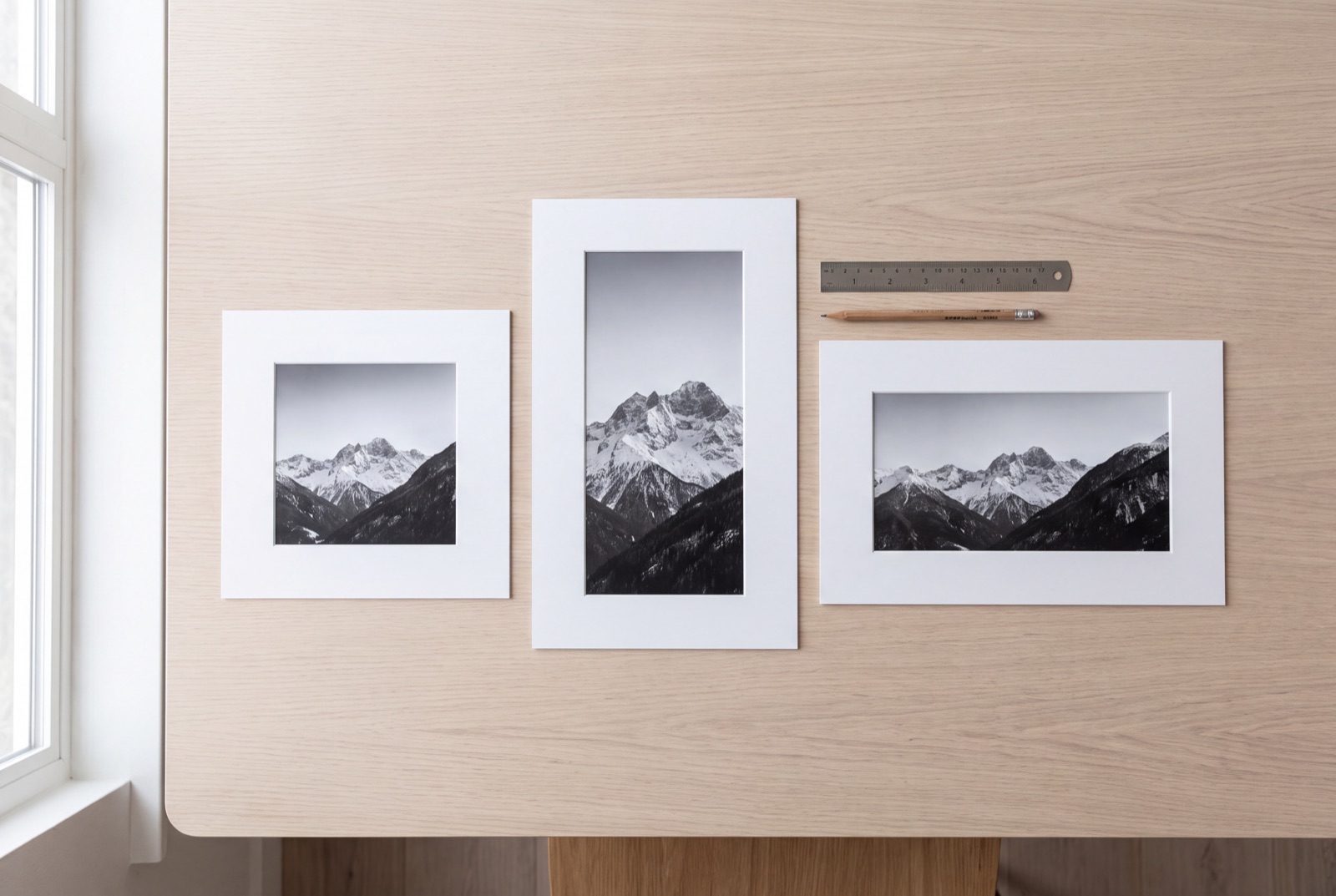
The right format for the next step.
Have a WebP image that your document, older editor or upload form will not accept? Export a JPG and carry on. For photographs, quality controls help you balance detail and file size. For logos and artwork with transparent edges, choose the background deliberately before converting.
Useful wherever your images go
One simple conversion, with practical controls for different kinds of work.
Social media posts
Prepare saved WebP images for your publishing workflow. Use our image resizer next if the post also needs different dimensions.
Documents and slides
Create JPG copies for presentations, reports and document editors that need a widely supported image format.
Product photos
Choose a consistent background for transparent product images before saving a JPG for a listing or catalogue.
Client handoffs
Convert a batch and share one ZIP. Clearly named JPGs are easy for another person to open and organise.
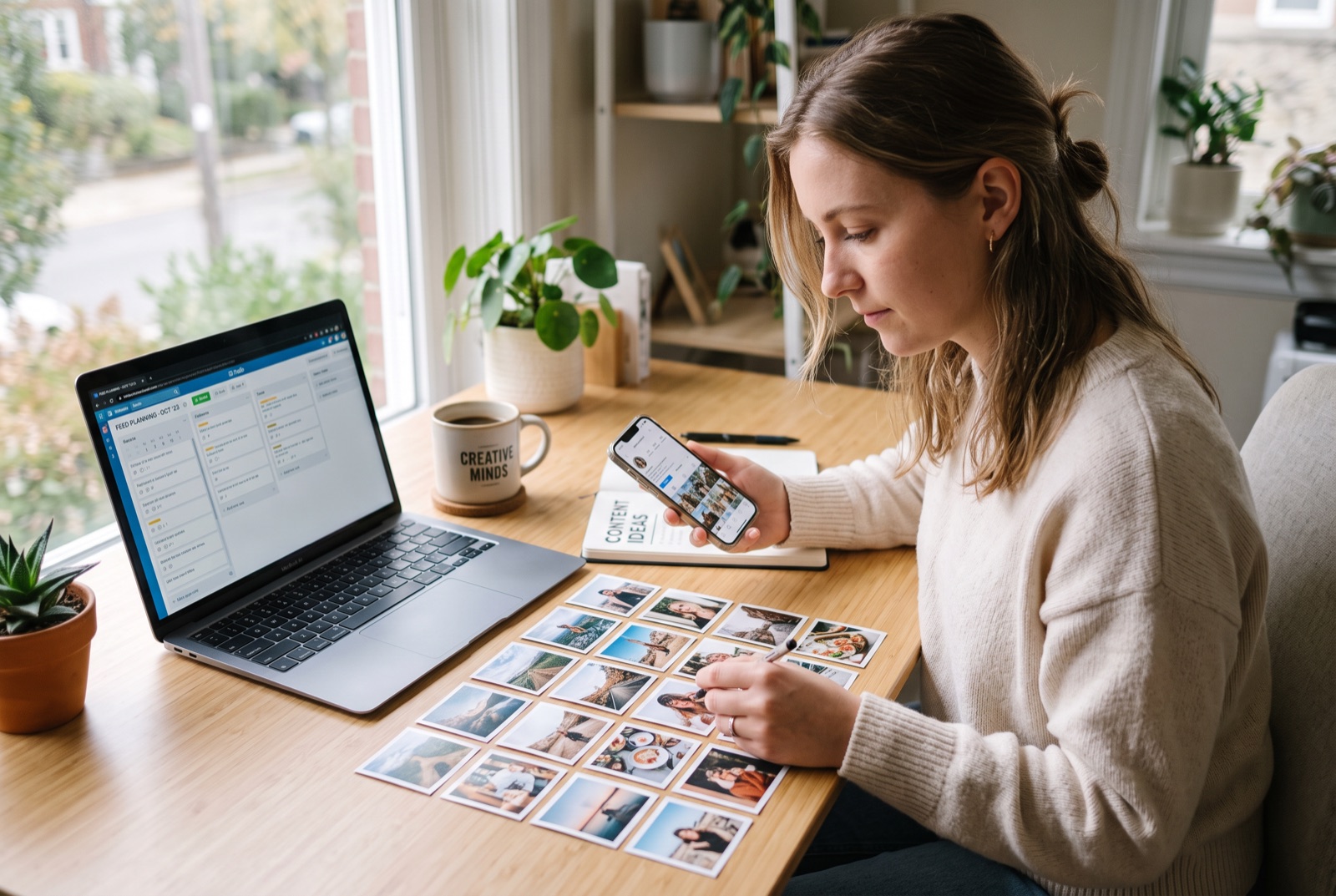
Your images are ready. Put them to work.
Bring your finished JPGs into Social Magnum to plan, schedule and publish your social posts. Keep your content calendar and connected accounts in one place, with free tools available whenever you need them.
WebP to JPG questions, answered
How do I convert WebP to JPG?
Choose or drop your WebP files into the converter, choose JPG quality and a background color, then select Convert to JPG. Download each result separately or save the ready files together as a ZIP. You do not need an account.
Are JPG and JPEG the same format?
Yes. JPG and JPEG are two filename extensions for the same image format. This converter exports real JPEG image data with a .jpg extension; it does not simply rename the WebP file.
Will converting WebP to JPG reduce image quality?
JPEG uses lossy compression, so converting can discard detail even at 100% quality. The tool keeps the decoded image dimensions without cropping or resizing. Start at 90%, inspect the preview and downloaded image, and increase quality if needed. Keep your original WebP for future edits.
What happens to a transparent WebP background?
JPG cannot store transparency. Transparent and partially transparent areas are combined with your chosen white, black or custom background. Opaque parts of the image are unaffected by the background setting. Keep the WebP or use a format such as PNG if you need transparency.
Can I convert several WebP files at once?
Yes. Add up to 10 files per batch, with a 20 MB limit per file and 60 MB total input. Images must be at most 16 megapixels and 8,192 pixels on either side. Ready JPGs can be downloaded together as a ZIP. Converted output is limited to 100 MB per batch to help keep browser memory manageable.
Are my images uploaded or stored on a server?
No. Image decoding and JPG conversion happen locally in your browser. The converter does not send image files to Social Magnum or any other server. Clear all removes the selected files and results from this page; downloaded files remain on your device.
Does it support animated WebP?
No. This tool accepts still WebP images and rejects animated files with an explanation. JPG cannot preserve animation, so converting an animation to a single picture would lose its motion.
Why is my JPG larger than the WebP?
WebP and JPEG compress images differently. A JPG can be larger than its WebP source, especially at higher quality. Lower the quality and convert again if you need a smaller file. There is no guarantee that changing formats will reduce the file size.
Does the JPG preserve metadata and color profiles?
The converter exports pixels from a browser canvas. It does not copy the original EXIF, XMP or embedded color profile into the JPG. Color appearance can vary with browser color management. Keep the source file when metadata or exact color reproduction matters.
Can I use it on my phone?
Yes, in a current browser that supports WebP decoding and JPG canvas export. Choose files from your device and save the results through your browser. Large batches may need more memory than a phone can provide; use fewer or smaller images if conversion fails.
Related reading
Social Media Image Sizes: Documented, or Just Widely Agreed?
Social media image sizes split into what the platforms publish and what is only convention. Every figure read at source, the difference marked.
ReadInstagram Post Size: 4:5, 3:4, and the Number Most Guides Get Wrong
Instagram post size runs to 1080x1440, taller than the 1080x1350 most guides quote. What the help page says, and which ratio you should use.
ReadMore free tools
Character counter
Count characters, words and lines. Check X and Bluesky post limits, a LinkedIn estimate, or your own custom target.
OpenEngagement rate calculator
Calculate engagement by followers, reach, impressions or views. See the formula and copy a clear report.
OpenPNG to JPG converter
Convert PNG images to JPG, choose a transparency background and download a batch as a ZIP.
Open