Instagram Reel Size: 1080 × 1920, and the Cover You Cannot Redo
The video is the easy part. The cover is a separate 420 × 654 image, it is what your profile grid is built from, and Instagram says you cannot change it once it is uploaded.
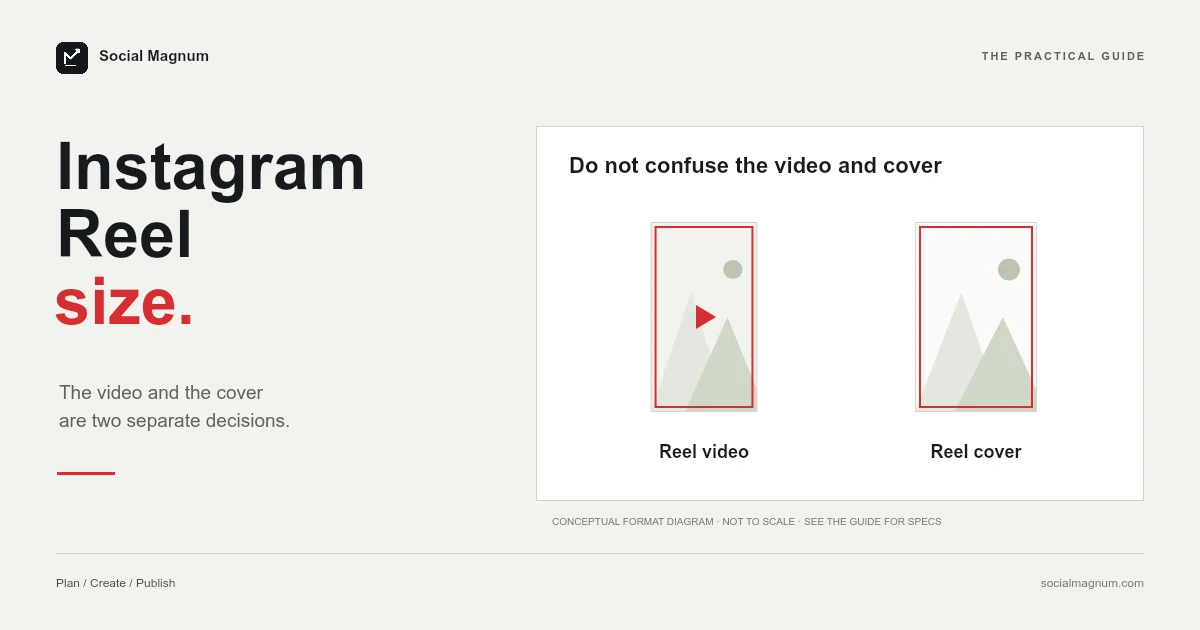
An Instagram Reel is 1080 × 1920 pixels at 9:16. That is the easy part, and every guide will tell you the same thing.
What almost none of them mention is the cover. It is a separate image at 420 × 654 pixels, it is what people see when they find your Reel on your profile — and according to Instagram’s own help page, once you have uploaded it you cannot change it. It is the only decision on this page you get exactly one attempt at.
What size is an Instagram Reel?
| Spec | Figure | Source |
|---|---|---|
| Video size | 1080 × 1920 px (9:16) | Universal convention |
| Cover photo | 420 × 654 px (1:1.55) | Instagram help page |
| Accepted ratios | 1.91:1 to 9:16 | Instagram help page |
| Minimum resolution | 720 pixels | Instagram help page |
| Minimum frame rate | 30 FPS | Instagram help page |
Key facts, read from Instagram’s reel size help page on 21 August 2026: a reel can be uploaded at any aspect ratio between 1.91:1 and 9:16, needs a minimum frame rate of 30 FPS and a minimum resolution of 720 pixels, and its recommended cover photo is 420 × 654 pixels (1:1.55), which Instagram says cannot be edited after upload. 1080 × 1920 at 9:16 is the universal working size rather than a published requirement. The home-feed (about 4:5) and profile-grid crops are reported by third-party guides, not by Instagram.
The cover is 420 × 654, and you get one attempt
Instagram states the recommended cover photo size as 420 px by 654 px, a 1:1.55 ratio, and then adds the sentence that matters: at the moment, you cannot edit your cover photo after you have uploaded it.
This is why the cover deserves more thought than it usually gets. It is not a formality at the end of the upload — it is the thumbnail your profile grid is built out of, and for anyone who arrives at your account rather than your Reel, it is the whole first impression.
1:1.55 is a tall, narrow rectangle — taller than a 4:5 post, shorter than the 9:16 video it belongs to. Design it as its own image rather than trusting a frame grab, and keep the subject central, because the grid crops it again (the taller 3:4 grid is explained in Instagram post size).
Instagram gives you two ways to set it: scrub the video and pick a frame, or upload an image. Picking a frame is quicker and almost always worse, because a still lifted from moving footage catches people mid-blink, mid-word and mid-gesture. Uploading gives you a cover with type on it, a clean crop and a subject that is actually looking at the camera — which is the difference between a grid that reads as a channel and one that reads as a pile of video files.
One resizer even lists 420 × 654 as a profile-picture preset; we cover that mix-up in Instagram profile picture size.
1080 × 1920, not 1920 × 1080
The numbers are the same. The order is not, and getting it backwards produces a landscape video where a vertical one should be.
You can see the damage in Google’s People Also Ask box, which asks outright: “Are reels 1920x1080?” They are not, and the reason people are unsure is sitting in the results above the question.
The convention is simply width first, then height. We went through the same arithmetic in detail on Instagram Story size, where a page in position two makes the identical mistake.
A Reel is shown in three different shapes
You upload one vertical video and Instagram presents it in at least three places, none of which are the same rectangle.
| Where | Shape shown | What happens to your frame |
|---|---|---|
| Reels feed | Full 9:16 | Everything is visible, behind the interface |
| Home feed | Cropped to about 4:5 | Top and bottom trimmed away |
| Profile grid | Cropped square or taller | Only the middle survives |
The consequence is the same one that governs Stories: the middle of the frame is the only region that survives everywhere. A caption burned into the bottom of a Reel is fine in the Reels feed and gone in the home feed.
The safe area
On top of the cropping, Instagram draws its own interface over the video — the caption, the audio name, the like, comment, share and save controls down the right-hand side.
- Keep text and faces clear of roughly the top 250 and bottom 250 pixels, leaving a central band of about 1080 × 1420.
- Leave the right-hand edge alone as well. The action buttons sit there, and they are taller than people expect.
- Assume captions will be added on top. If you burn subtitles in low, Instagram’s own caption sits on them.
As with Stories, these safe-area numbers are community convention rather than something Instagram publishes. They describe the interface accurately, and they can shift when the app is redesigned.
What Instagram actually requires
The recommendations above are conventions. The requirements are narrower and worth knowing, because they are the rules an upload is actually checked against.
Instagram accepts a reel with an aspect ratio anywhere between 1.91:1 and 9:16 — which means a landscape video is not rejected, it is simply shown in a tall frame with the space filled in. It asks for a minimum frame rate of 30 FPS and a minimum resolution of 720 pixels.
There is also a setting most people never find. Under Menu, then Your app and media, then Media quality, there is an “Upload at highest quality” toggle. Instagram notes that turning it on may make uploads slower. If your Reels have looked softer than the file you exported, that switch is the first thing to check.
What happens if you post a landscape video
The 1.91:1 end of Instagram’s accepted range is easy to skim past, but it is the answer to a question people ask constantly: can you put an existing horizontal video up as a Reel?
You can. It will not be rejected. What happens instead is that a wide frame is placed inside a tall one, so your video occupies a band across the middle of the screen and the rest of the space is filled in around it. On a format built entirely around filling a phone screen, that is a conspicuous way to look like you posted something meant for somewhere else.
It is worth doing deliberately if the footage genuinely demands width — a landscape interview, a screen recording. It is worth avoiding by accident, which is what usually happens when someone exports at their editor’s default project settings rather than setting up a vertical sequence.
The middle option, and usually the best one, is to build a vertical composition around the horizontal clip: place the video in the centre and use the space above and below for a title, a caption or plain colour. That fills the frame, keeps the footage undistorted, and gives you somewhere safe to put text.
Setting the canvas in your editor
Most Reels that come out the wrong shape were built in a project that was the wrong shape, and no export setting recovers from that.
- CapCut asks for a ratio rather than pixels. Choose 9:16, and export at 1080p rather than 720p — the minimum Instagram accepts is 720, which is not the same as the size worth giving it.
- Premiere or Final Cut need a sequence at 1080 × 1920 before you drop anything into it. Changing the sequence afterwards rescales your whole timeline.
- Anything shot on a phone is already vertical, and usually already close to 9:16. The mistake there is cropping to square out of habit.
Set the frame rate to 30 FPS or higher, since 30 is Instagram’s stated minimum. And if you have shot at 60, keep it — there is no benefit to halving it on the way out.
Reel size in inches and centimetres
Google lists this among the related searches, alongside a query for CapCut, because design and editing tools ask for units that Instagram never uses.
A Reel has no physical size. At the 96 pixels-per-inch web standard, 1080 × 1920 is 11.25 × 20 inches, or roughly 28.6 × 50.8 centimetres. At the 300 DPI print default the same pixels are 3.6 × 6.4 inches. Set your project units to pixels and enter 1080 × 1920 directly.
Preparing the cover image
The video itself comes out of whatever you edited it in. The cover is the part that usually needs separate work, and it is the part worth doing carefully given you cannot revise it.
A 1:1.55 frame is unusual — taller than a feed post, shorter than the video. Cropping a still to it means choosing which part of the picture to keep, and because the profile grid crops the cover a second time, the safest composition puts the subject in the middle with room on every side.
Our free image resizer handles this in the browser, with no upload to a server and no account. Set 420 × 654, choose the point the crop should keep, and export before you start the upload — so the one irreversible decision is made deliberately rather than in the last five seconds of posting.
A cover you cannot change afterwards is the kind of detail no size table warns you about. Our guide to social media image sizes collects the rest of them, and marks which figures the platforms actually publish.
The short version
- 1
Reels are 1080 × 1920 at 9:16 — width first, so not 1920 × 1080
- 2
The cover is a separate 420 × 654 image and cannot be changed after upload
- 3
Instagram accepts 1.91:1 to 9:16, minimum 720 pixels and 30 FPS
- 4
The same Reel is cropped three different ways, so keep the subject central