How to Schedule LinkedIn Posts, and the Three Limits
LinkedIn schedules posts free and its own help page ranks first, so the steps are easy. The window, the three post types it refuses, and the time zone rule are not.
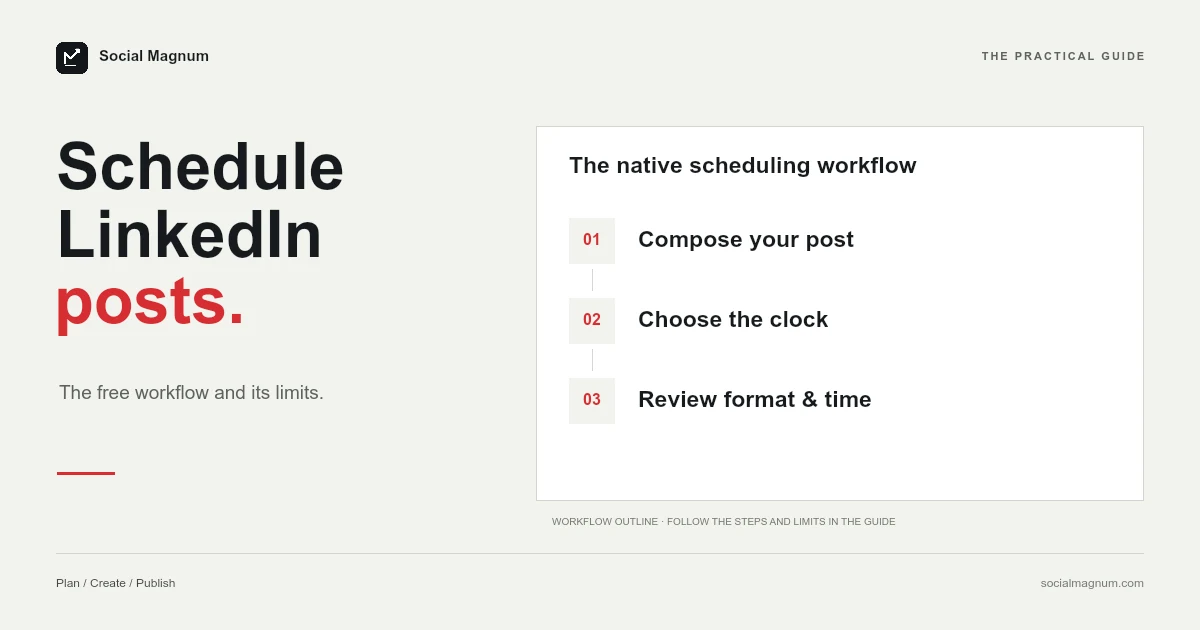
LinkedIn schedules posts natively and free, and unusually for this kind of question its own help page ranks first, so the basic instructions are easy to find.
What is not easy to find are the three limits attached to the feature: a scheduling window with both ends defined, three post types that cannot be scheduled at all, and a time-zone rule that will eventually surprise anyone who travels. The numbers: 10 minutes to 3 months ahead, no Events, Jobs or Services posts, and times standardised in UTC from your device.
Scheduling inside LinkedIn
- Click Start a post at the top of your homepage.
- Write the post.
- Click the clock icon in the lower-right of the compose window.
- Choose a date and time, click Next, then click Schedule.
The dropdown offers 30-minute increments, but LinkedIn notes you can type an exact time instead — useful if you have a reason to avoid landing on the hour and half-hour with everyone else.
Ten minutes to three months
LinkedIn defines both ends of the window, which is more than most platforms do.
| Platform | Scheduling window |
|---|---|
| 10 minutes to 3 months ahead | |
| 20 minutes to 29 days ahead | |
| TikTok | 15 minutes to 10 days ahead |
| Up to 30 days, 25 posts a day |
Three months is generous — the most generous of the four — and the ten-minute floor is the part that catches people. You cannot schedule something for five minutes from now, so a post you want out imminently has to be published rather than scheduled.
Three post types you cannot schedule
This is absent from every third-party guide we read for this term, and it produces an error rather than a warning.
LinkedIn states that scheduling is not supported for posts containing Events, Jobs or Services. If you add one of those to a post you intended to schedule, you get an error message and two choices: clear the date and post immediately, or remove the offending element.
The practical workaround is to schedule a normal post that links to the event or job rather than attaching it as a LinkedIn object. You lose the native card and keep the schedule.
The time zone rule
LinkedIn adds a note that is easy to skim and worth stopping on: scheduled time is standardised in UTC, based on your device’s time zone settings.
For most people, most of the time, this changes nothing. The case where it matters is when the device changes — you schedule a week of posts from one country and read them back from another, and the times you are shown are not the times you were thinking in when you set them.
This matters more on LinkedIn than elsewhere because its audiences are so often spread across countries — the same reason we argued the time zone is the real question in our guide to the best time to post on LinkedIn.
Where scheduled posts go
Like X, LinkedIn hides the queue behind the compose button rather than putting it somewhere obvious.
Click Start a post, click the clock icon, and then choose View all scheduled posts in the lower-left of the dialog. That opens a page showing previews of everything waiting.
A LinkedIn Pulse article about how to find your own scheduled posts currently ranks on page one for this query, which tells you how well hidden it is. When a platform’s users write guides to locating a feature inside that platform, the navigation is the problem.
In the mobile app the flow is the same with the clock in a different corner: tap Post, write, tap the Clock icon in the upper-right, pick the date and time, tap Next, then Schedule; the help page documents both.
How do you edit a scheduled LinkedIn post?
A genuine advantage over some other platforms: a scheduled LinkedIn post remains fully editable until it publishes.
From the scheduled posts view you can modify the schedule, edit the post itself, or delete it. That is more than TikTok allows even after publication — where nothing can be edited at all — and it makes scheduling a review mechanism rather than just a convenience.
The useful habit that falls out of this is scheduling slightly further ahead than you need. A post written today and going out tomorrow gives you an evening to reconsider the opening line, which on LinkedIn is the part that decides whether anything below it is read.
Profiles and Pages are documented separately
Worth knowing if you manage both, because the instructions live in different articles and the interfaces are not identical.
LinkedIn has one help page for scheduling a post from your profile and another for scheduling a LinkedIn Page post. The flow is broadly the same — compose, clock icon, date and time — but anything you read about one does not automatically describe the other.
If you are switching between a personal profile and a Company Page regularly, that split is also the point at which the native tooling starts to feel like work rather than a feature.
The help page is two years old
A small thing worth noticing, because it explains why guides about this feature drift apart.
LinkedIn’s scheduling help page carries a “last updated” date of roughly two years ago. Its image specifications page, by contrast, was updated the day before we read it. The same help centre maintains its documentation at very different tempos depending on the subject.
This is also why we date every figure in these guides. A specification without a date attached is a claim you cannot age, and most of the disagreement we keep finding between guides comes down to people quoting correct figures from different years.
Scheduling is really about batching
The reason to use any of this is less about precision than most articles on the subject suggest.
The value of a three-month window is not that you can plan a quarter in advance — almost nobody does — but that you can write four posts in one sitting on a day when writing is going well, and stop depending on being available and articulate on four separate mornings.
That is the honest case for scheduling on LinkedIn specifically, where the format rewards thinking properly about an opening line, and where the main reason people stop posting is not running out of ideas but running out of Tuesdays where they had time.
Where the free version runs out
Being straightforward, since we sell the alternative: for one profile posting a few times a week, LinkedIn’s built-in scheduler is enough and a paid tool is an unnecessary cost.
It stops being enough in specific circumstances.
- A profile and a Page, or several Pages. Each is scheduled separately, in its own context, with its own queue.
- More than one network. Nothing scheduled on LinkedIn exists anywhere else, so the same announcement gets rebuilt for every platform it is going to.
- Anyone approving anything. There is no review step and no way for a colleague to see the queue before it publishes.
- Events, Jobs and Services. The native scheduler simply will not take them.
None of these are faults. They are the edge of a feature built so one person can write on Sunday and publish on Tuesday, which it does well and at no cost.
When a tool earns its place
A scheduler is worth paying for when the thing you are managing is a schedule rather than a post — several accounts, several networks, someone else’s sign-off, or a volume you cannot hold in your head.
Social Magnum publishes to LinkedIn Company Pages from the same calendar as 20+ other networks, with approvals, a shared queue and a scheduling window that runs past LinkedIn’s three months. It connects through LinkedIn’s official Community Management API, so a post you schedule here publishes as an ordinary Page post. It will not remove every native limit: an Events post is still an Events post, and scheduling to a personal profile stays with the clock icon for now.
If none of the boundaries above apply to you, use the clock icon. It is free, it is already there, and it works.
The short version
- 1
LinkedIn schedules free — the clock icon in the Start a post window
- 2
The window is 10 minutes to 3 months, the most generous of the major platforms
- 3
Events, Jobs and Services posts cannot be scheduled and produce an error
- 4
Scheduled times are standardised in UTC from your device's time zone
- 5
Scheduled posts stay editable until they publish, unlike a published TikTok
- 6
For Company Pages across several networks, a scheduler such as Social Magnum publishes through LinkedIn's official API