Why your images look blurry on Instagram and Facebook
The platform re-encodes every upload — the damage depends on how much work you hand it. The five causes behind nearly every mushy post, the hidden quality setting, and the arrive-at-display-size strategy.
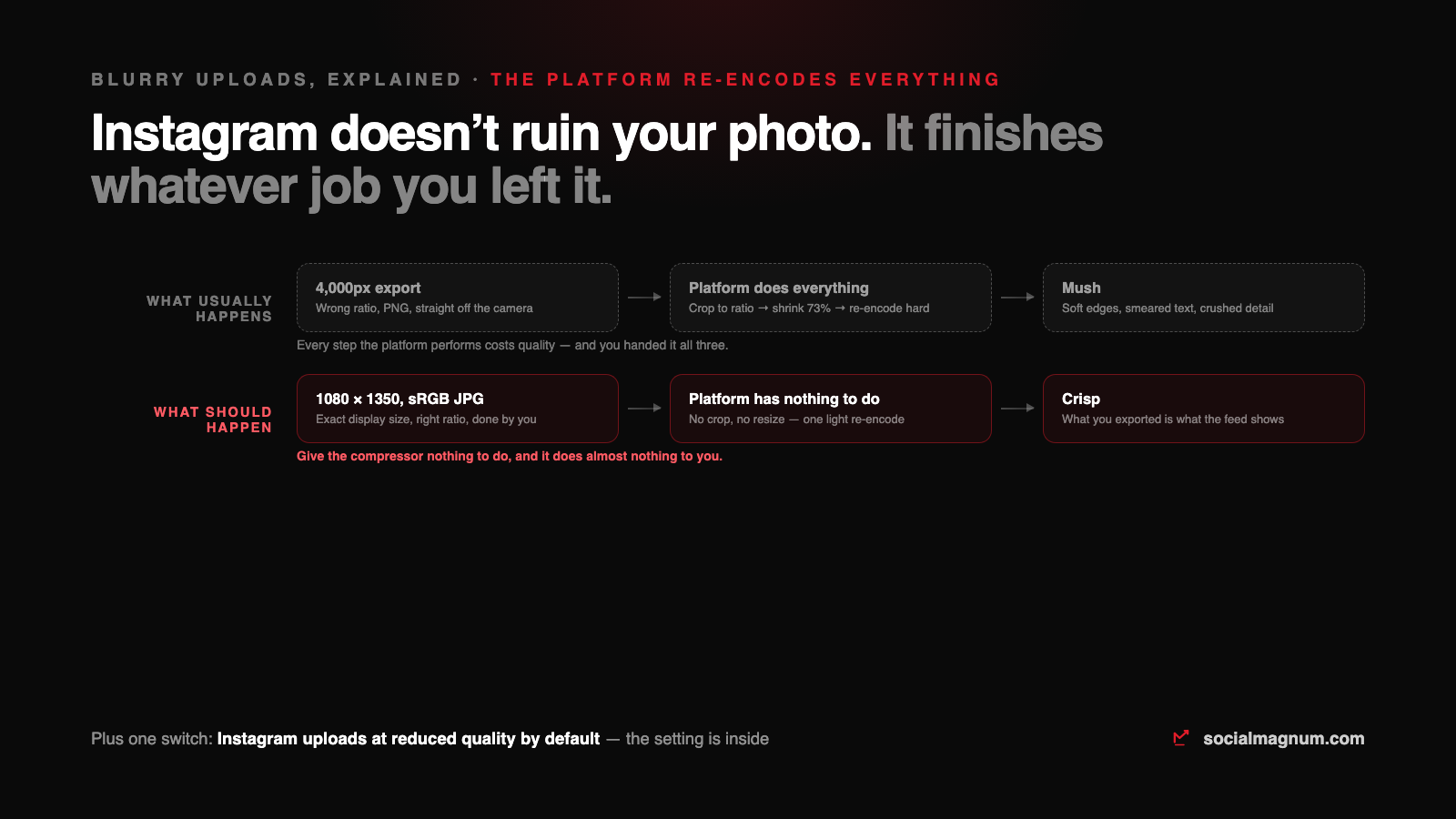
You exported something crisp. You posted it. The feed is showing you mush — soft edges, smeared text, a face that looks like it was photographed through a shower door. Nothing is broken: this is the platform’s image pipeline doing exactly what it does to every upload, and how much damage it does is mostly decided by what you hand it.
Here is the honest mental model, the five causes that account for nearly every blurry post on Instagram and Facebook, and the fixes in the order they matter.
What actually happens to an uploaded image
Every image you upload is resized to the platform’s display widths, converted and re-encoded as a compressed JPEG, then served in several sizes for different screens. That happens to everyone, every time — there is no premium tier that skips it. Quality is lost at each step the platform performs, so the entire game is simple: leave the platform as little work as possible. An image that arrives at the exact display size, in the right aspect ratio, as a well-encoded sRGB JPEG, needs one light re-encode and survives it visibly intact.
The five causes, in order of likelihood
| Cause | What you see | The fix |
|---|---|---|
| Oversized source (3–6,000px) | Overall softness — the platform shrank it ~70% with a fast resampler | Export at display size yourself: 1080px wide, done in your editor |
| Wrong aspect ratio | Cropped heads, stretched frames, letterboxing | Match the target ratio before upload — 4:5 feed, 9:16 vertical |
| Data-saver / default upload quality | Photos fine on Wi-Fi, mushy from the phone | Turn on Instagram's “Upload at highest quality” setting (below) |
| Photo exported as PNG | Huge file, extra-aggressive recompression | JPG for photos; PNG only for flat graphics |
| Screenshot of an export | Double compression — artifacts on artifacts | Post the original file, never a screenshot of it |
The Instagram setting most people never find
The Instagram app uploads at reduced quality by default in data-saving situations, and it keeps that choice quiet. In the app: Settings → Data usage and media quality → Upload at highest quality. Turn it on. Uploads take a moment longer and stop being quietly degraded on the way out of your phone — the single highest fix-per-effort switch in this article.
Arrive at the right size — the numbers
The display sizes worth memorising: 1080 × 1350 for feed portraits, 1080 × 1920 for Stories and Reels, 1080 × 1080 for squares. The full sheet for every platform lives in our verified size cheat sheet, and the free resizer renders one image into all of them around a focal point you choose — in your browser, without the upload-to-a-server step that would be one more recompression.
Text in images: designed for after compression
Compression hits fine detail and sharp colour edges hardest — which is precisely what thin text is. If your posts carry words, the words need to survive the re-encode: big type, high contrast against the background, and margins away from the edges. The test is not whether it looks good in your editor at full size; it is whether it reads on a phone after the platform has had its way with it.
The same story, harder, for video
Video goes through the same pipeline with a heavier hand: bitrate is crushed, and detail-dense frames (confetti, rain, fast pans) smear first. The rules translate directly — export at the target resolution (1080 × 1920 for Reels), keep motion deliberate, and never re-post a downloaded, watermarked copy, which arrives pre-compressed and leaves twice as damaged.
The short version
- 1
Every platform re-encodes every upload; quality is lost on each step it performs. Arrive at display size, in the right ratio, and it has almost nothing left to do.
- 2
Export at 1080px wide in the target ratio yourself — whoever does the resize decides the quality, and your editor resizes with more care than a feed pipeline.
- 3
Turn on Instagram's 'Upload at highest quality' setting — the app degrades uploads by default in data-saving situations.
- 4
JPG for photos, PNG only for flat graphics, and never post a screenshot of an export — double compression shows.
- 5
Design text-bearing images for after compression: big type, high contrast, nothing thin near the edges.