How to edit text in a PDF without Acrobat
Anyone can put new text on a PDF — the trick is text that doesn't look edited. The free methods compared honestly, why most of them change the font, and the cover-up mistake that leaves the original text one Ctrl+F away.
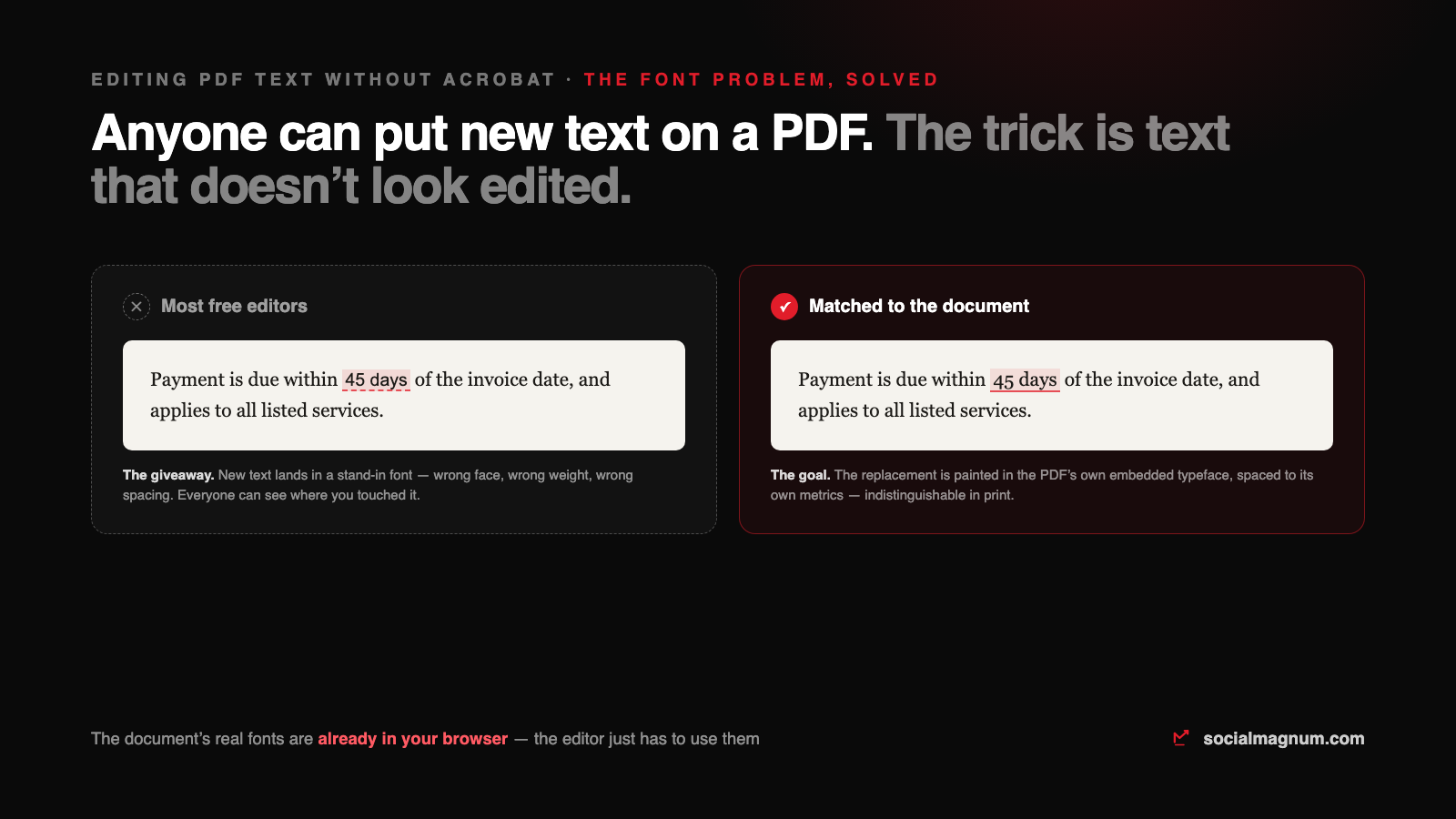
The task is always small: a date on a contract, a price on a quote, a typo in a name. Acrobat’s answer is a subscription. The internet’s answer is a pile of free methods that technically work — and usually leave the document looking like someone taped a new word over the old one.
We build a free PDF editor, which meant spending real engineering time on the part every listicle skips: making an edit that does not announce itself. This guide covers the free methods that genuinely work, when each one is the right choice, and why edited text so often comes out in the wrong font.
The short version
To edit text in a PDF without Acrobat: open the file in a browser-based PDF editor, click the line, retype it, and export. For text-heavy documents where layout matters less, converting through Word or LibreOffice also works. For scanned PDFs, nothing works without OCR — the page is a photograph, not text.
Why editing PDF text is genuinely hard
A PDF is not a document in the Word sense. It is a drawing: glyphs placed at coordinates, usually in a font that was subset when the file was made — meaning the file carries only the exact letters the document used, often under a scrambled internal name. There is no paragraph to click into. Any editor offering in-place editing is quietly reconstructing text, font and spacing around your change, and the quality of that reconstruction is the entire difference between tools.
The four free methods, honestly compared
| Method | Keeps layout | Keeps fonts | File stays private | Best for |
|---|---|---|---|---|
| Browser PDF editor (client-side) | Yes | Matched | Never uploaded | Small text fixes that must look untouched |
| Online PDF editors (server-side) | Mostly | Stand-in font | Uploaded | Quick edits on documents with nothing sensitive in them |
| Microsoft Word conversion | Reflows | Substituted | Local | Text-heavy documents you'll re-export anyway |
| LibreOffice Draw / Google Docs | Varies | Substituted | Local / Drive | One-line fixes; simple layouts |
Method 1: a browser editor that edits in place
- 1. Open the PDF in the editor. A client-side tool reads the file straight into the page — nothing uploads, which for contracts and invoices is the whole conversation.
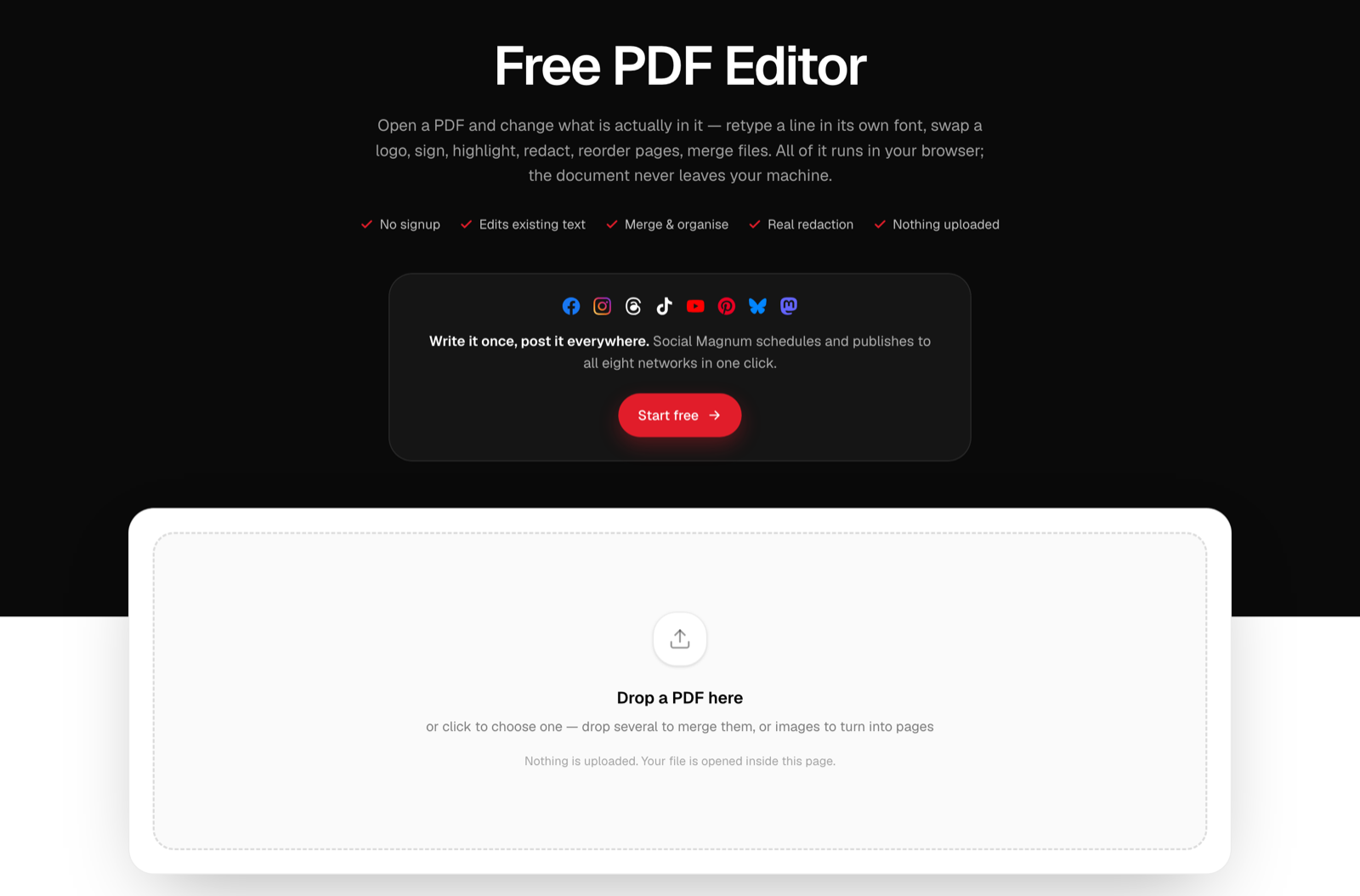
- 2. Click the text and retype. In our free PDF editor the line becomes editable where it sits, in the document’s own typeface — including bold and italic runs.
- 3. Export. Pages with edited text are flattened on the way out, which serves two purposes at once: the replacement renders exactly as previewed, and the original text is actually destroyed rather than hidden.
Methods 2–4: the converters
Word opens PDFs by converting them — honest and sometimes ideal: for a text-heavy report you plan to re-export anyway, reflow is a feature. For anything designed — forms, letterheads, multi-column layouts — expect shifted spacing and substituted fonts. LibreOffice Draw keeps elements roughly in place and suits one-line fixes on simple pages. Google Docs is the roughest conversion of the three and earns its place only by being available on anything with a browser.
The scanned-PDF caveat
If you cannot select the text with your cursor, the PDF is a photograph of a page, and no text editor — free or paid — can edit words that are pixels. That file needs OCR first, and even then you are editing recognised text over an image. Check with one click before blaming the tool.
The cover-up trap: white boxes don’t delete anything
The oldest free method is drawing a white rectangle over the old text and typing on top. It looks fine on screen — and the original text is still in the file, one select-all or Ctrl+F away. People have shipped salaries, addresses and legal terms this way.
This is why our editor flattens edited pages on export: an edit replaces the content, it does not carpet over it. And for genuinely sensitive removals, use a real redaction tool — ours ships one — which removes the text and the pixels, not just the visibility.
The short version
- 1
PDFs are drawings of glyphs, not editable paragraphs — every in-place editor is reconstructing text around your change, and the reconstruction quality is the product.
- 2
The font changes in most free editors because they type replacements in a stand-in face; the document's real fonts are already in the browser, and a careful editor uses them.
- 3
Pick by document: browser editor for edits that must look untouched, Word/LibreOffice for text-heavy files you'll re-export, OCR first for anything scanned.
- 4
For contracts and invoices, prefer client-side tools — server-side editors mean your document sits on someone's server.
- 5
Never cover text with white boxes: the original stays in the file. Real edits replace content; real redaction removes it.